3 minutes
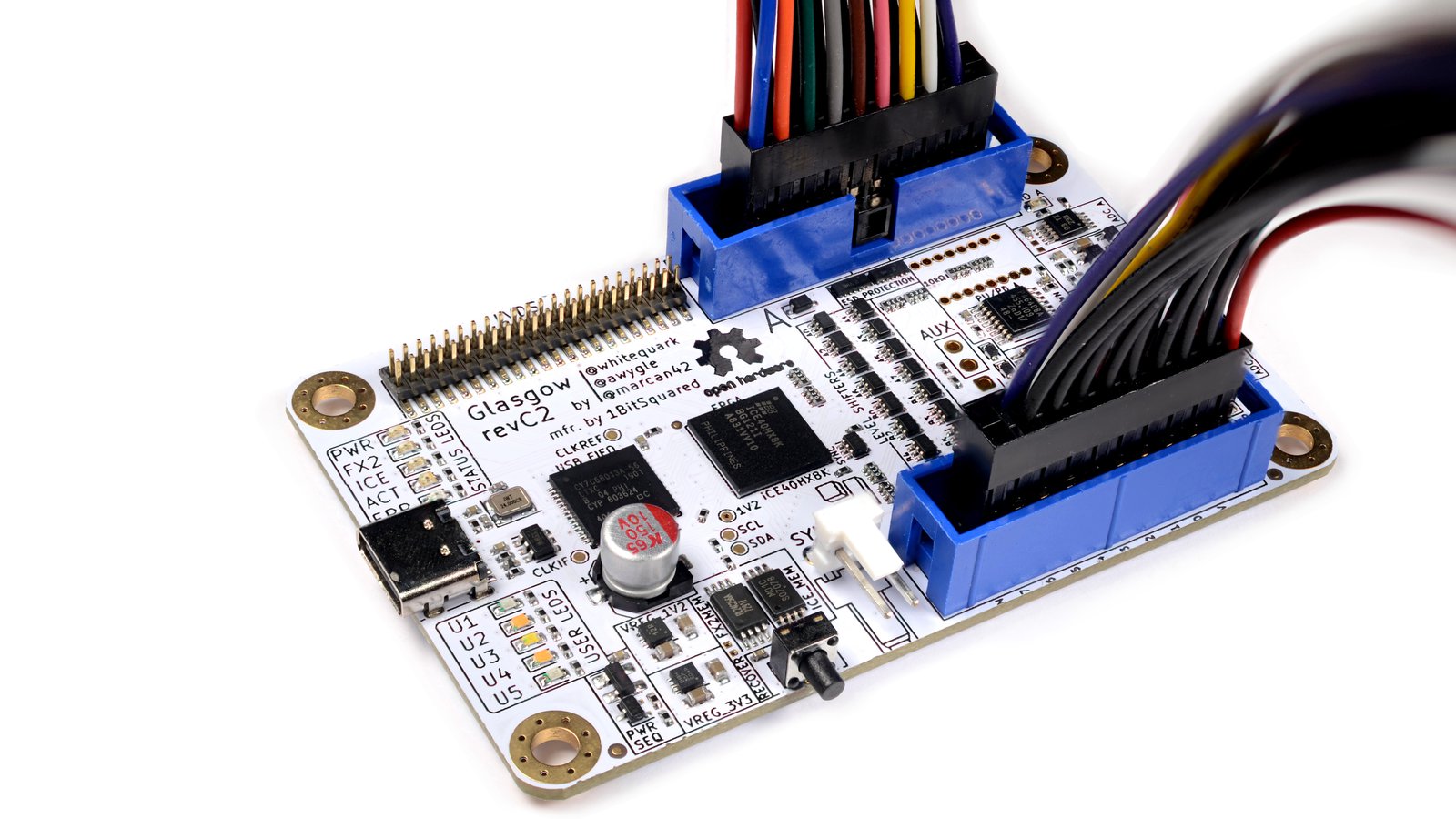
Glasgow Interface Explorer - I2C
Glasgow
In my previous post I wrote about using the Glasgow Interface Explorer to read SPI flash memory.
This post demonstrates how we can interact with I2C peripherals using the Glasgow and learn a little bit about what I2C is along the way. For more info on the Glasgow check out the docs in the project GitHub.
Want to play around with your own Glasgow? They’re currently available for pre-order on crowdsupply.
I squared C
I2C was developed in 1982 at Philips Semiconductors. It’s a synchronous, serial communication bus that enables one or more controllers to interact with one or more peripheral devices. You’ll find I2C often connecting cheap, low-speed peripheral integrated circuits to a microcontroller.
The I2C protocol uses two lines to send and receive data. The serial clock line (SCL) controls the bus clock and the serial data line (SDA) carries data. Data is sent in either an address frame, used to indicate which peripheral the data should be sent to, or a data frame which contains all the subsequent data sent to the addressed peripheral.
Building the circuit
We’re going to connect a Glasgow as a controller to a couple of Waveshare RP2040-LCD-0.96’s and use the Glasgow to write a unique message on each peripheral. The final circuit will look like the image below.
I2C uses open-drain lines which need to be pulled up using two 4.7 kΩ resistors. We’ll look at what that means and why we care at the end of this post.
We’ll also need to connect each device to the Glasgow’s GND so we don’t accidentally damage the RP2040’s.
┌───────────────────────┐
│                   VCC ┣━━━━━━━━━━┳━━━━━━━┓
│                       │          R1      R2             ┌───────────────────────┐
│                   SDA ◀━━━━━━━━━━┻━━━━━━━│━━━━━━━━━┳━━━━▶SDA                    │
│      Controller       │                  ┃         ┃    │                       │
│                   SCL ┣━━━━━━━━━━━━━━━━━━┻━━━━━━┳━━│━━━━▶SCL  Peripheral 1      │
│                       │                         ┃  ┃    │                       │
│                   GND ┣━━━━━━━━━━━━━━━━━━━━━┳━━━│━━│━━━━┫GND                    │
└───────────────────────┘                     ┃   ┃  ┃    └───────────────────────┘
                                              ┃   ┃  ┃
                                              ┃   ┃  ┃    ┌───────────────────────┐
                                              ┃   ┃  ┗━━━━▶SDA                    │
                                              ┃   ┃       │                       │
                                              ┃   ┗━━━━━━━▶SCL  Peripheral 2      │
                                              ┃           │                       │
                                              ┗━━━━━━━━━━━┫GND                    │
                                                          └───────────────────────┘
VCC               +3.3 V
R1, R2             4.7 K
Now that we have an idea of what we’re building, we’ll program the RP2040’s to act as I2C peripherals.
LCD Display
We’re going to configure the RP2040’s to read data from I2C and display the message on the LCD screen.
First, we’ll need the RP2040’s to act as I2C peripherals. There’s no way to do this using the micropython machine library, which exposes an I2C controller but not an I2C peripheral, so we’ll have to set one up on our own.
Luckily, someone has already done this and I’ve pasted the code below.
Next, we’ll add the LCD display control code. Download the LCD demo code from the Waveshare site and extract Pico_code/Python/Pico-LCD-0.96/pico-lcd-0.96.py. We just need the LCD_0inch96 class to interact with the LCD screen and ignore the rest of code.
Your peripheral code should look like this.
Glasgow I2C
todo:
- how to use the i2c app
- connecting to the rp2040
- sending a message to the device
- image of message on screen
Logic analyzer
Data sent over I2C is logic 0 when pulling the line to ground and logic 1 when the line is pulled high. We’ll take a look at this in a logic analyzer once we’ve completed the circuit.